
Looking for the best SnapTik browser tips to download watermark-free videos cleanly on Chrome, Safari, and Firefox? SnapTik offers a fast solution directly inside your standard web browser. You do not need extra software installations or risky app downloads to get started.
However, distinct web browsers handle downloads, clipboard permissions, and media caching differently. Chrome, Safari, and Firefox each present unique performance settings. Optimizing these browser settings ensures high-definition video saves every single time.
What Is SnapTik and How Does It Work?
SnapTik serves as an online media utility that strips watermarks from social clips. The platform extracts raw source files using public URL links.
[ Copy URL from Social App ] ➔ [ Paste Link into SnapTik ] ➔ [ Download Clean Video File ]
Because processing happens on cloud servers, browser performance dictates download speeds. Choosing the proper setup prevents frozen screens and failed file transfers.
Essential SnapTik Browser Tips for Google Chrome Users
Google Chrome handles web scripts quickly, making it a popular choice for media downloads. A few simple tweaks will make your experience even faster.

Enable One-Click Clipboard Pasting
Chrome allows automatic pasting permissions for trusted utility sites.
- Tap the lock icon next to the SnapTik web address.
- Toggle permissions to “Allow Clipboard Access.”
- Tap the paste button once to insert your target video link instantly.
Adjust Automatic Download Directories
By default, Chrome places all files into a generic downloads folder. You can gain better file control on desktop computers:
- Navigate to Settings > Downloads.
- Toggle on “Ask where to save each file before downloading.”
- Rename your clean clips immediately to maintain an organized collection.
Pro Tip: If Chrome blocks pop-up windows during download rendering, simply whitelist the domain in your security panel.
Helpful SnapTik Browser Tips for Apple Safari Users
Safari handles security strictly across iOS, iPadOS, and macOS devices. Following these SnapTik browser tips keeps your file downloads effortless.
[ Tap Download ] ➔ [ Confirm Safari Prompt ] ➔ [ Open File Manager ] ➔ [ Save to Camera Roll ]
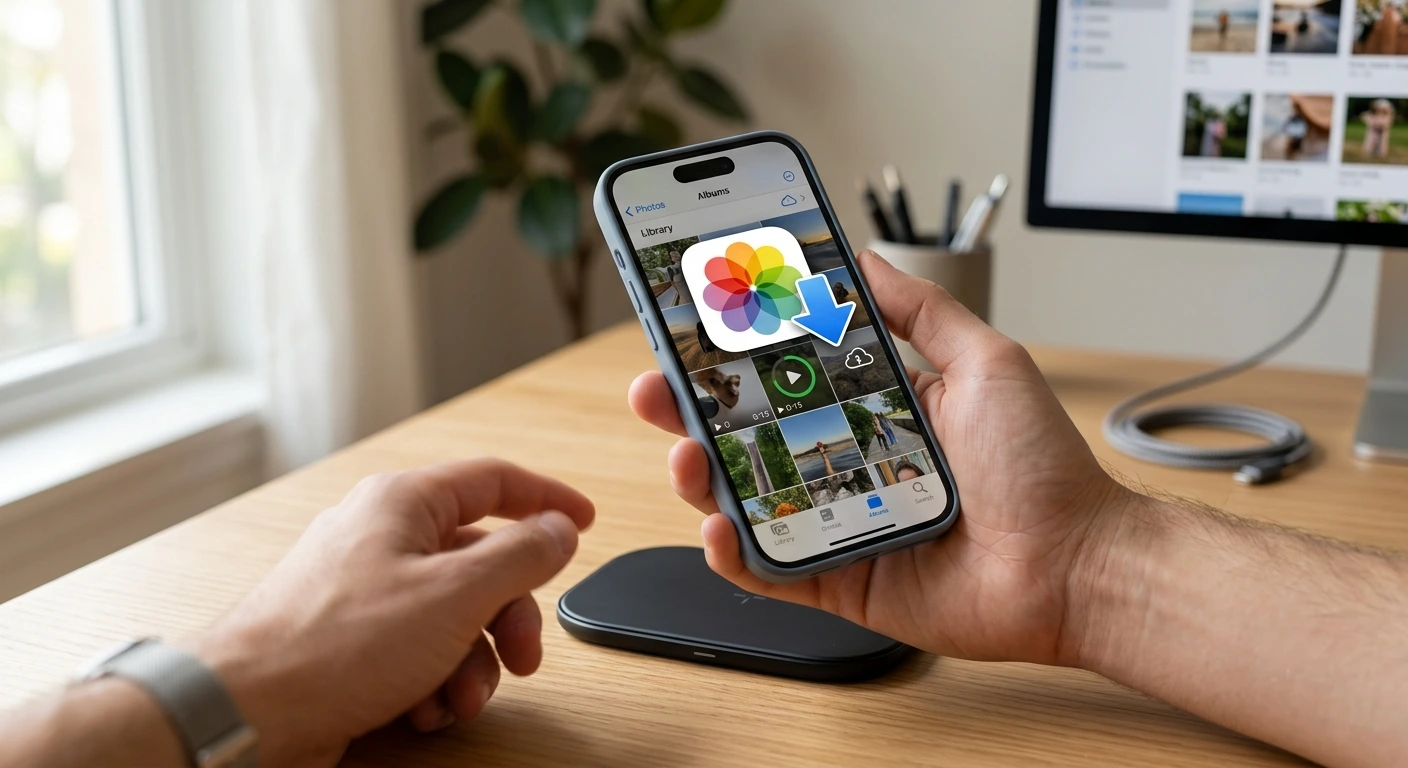
Saving Clips Directly to iPhone Photos
Mobile Safari stores downloaded files inside the Files app by default. Move them directly to your camera roll with these steps:
- Paste your link and click the primary download button.
- Tap Download on the Safari confirmation prompt.
- Open the blue arrow icon in your address bar.
- Select your file, tap Share, and press Save Video.
Fixing Script Hangs on Mac
Safari’s aggressive tracking protection occasionally pauses cloud conversion scripts. If processing freezes, open a Private Browsing Window using Cmd + Shift + N. This bypasses older cache files and keeps processing fast.
Useful SnapTik Browser Tips for Mozilla Firefox
Firefox focuses heavily on privacy, which can sometimes interfere with file conversions. Applying these SnapTik browser tips ensures continuous access.
Modifying Strict Tracking Protection
Strict security settings in Firefox can block conversion pop-ups.
- Click the Shield Icon left of the SnapTik URL.
- Turn Enhanced Tracking Protection OFF for this specific site.
- Refresh the page to render HD download servers without interference.
Setting Custom Folder Routing
Firefox allows you to route media files directly to designated folders. Go to Settings > General > Files and Applications to set a permanent home for your video collection.
Comprehensive Browser Comparison Guide
This quick breakdown compares how each web browser handles SnapTik media processing:
| Feature | Google Chrome | Apple Safari | Mozilla Firefox |
| Speed Index | Extremely Fast | Fast | Fast |
| Mobile Integration | Excellent on Android | Excellent on iOS | Good |
| Privacy Blocking | Moderate | High | Very High |
| Direct Camera Roll Save | Automatic (Android) | Manual Share Step | Automatic (Android) |
Safety and Best Practices for Online Downloading
Staying safe online keeps your devices secure while downloading content. Always follow these standard safety rules:
- Identify Real Buttons: True server buttons say “Server 01” or “HD Download”. Avoid clicking full-screen banner ads.
- Avoid Direct Executable Files: Legitimate video downloads end in
.mp4. Never run.exeor.apkfiles from a media downloader site. - Respect Copyrights: Always ask for permission before re-posting copyrighted media on public platforms.
Frequently Asked Questions (FAQs)
Conclusion
Mastering these SnapTik browser tips across Chrome, Safari, and Firefox is a fast, hassle-free way to save high-quality media without watermarks. By setting up one-click pasting on Chrome, managing Safari’s download menu on iOS, or relaxing tracking protection on Firefox, you can ensure smooth processing on any device. Adjust your browser settings today to build a seamless, high-speed media downloading workflow!