
TikTok has become a massive hub for creative clips, viral dances, and helpful tutorials. Millions of users turn to SnapTik every single day to save their favorite videos without a watermark. However, getting a “Download Failed” message can instantly ruin your experience.
You copy your link, open the site, and hit download. Instead of a clean video, you see an error screen. This issue happens frequently, but you can resolve it in just a few simple steps.
This guide explains why you see a SnapTik download error and how you can fix snaptik download failed error fast.
Why Does SnapTik Show a “Download Failed” Error?
Understanding the cause of an error speeds up the troubleshooting process. SnapTik relies on a stable connection between its servers and TikTok’s database. When anything breaks that link, your download fails immediately.
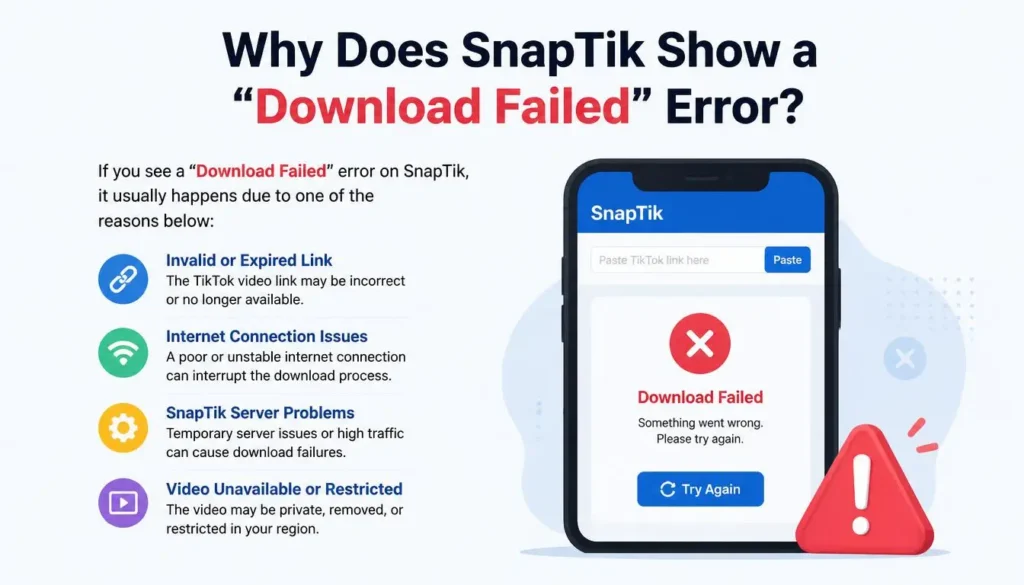
Several common issues usually trigger this download error:
- Invalid or Broken URLs: A missing character in the copied link breaks the system.
- Private TikTok Accounts: SnapTik cannot access or parse content from private users.
- Server Maintenance: Heavy user traffic can temporarily overload SnapTik’s servers.
- Browser Cache Glitches: Corrupted browser data can disrupt active scripts.
- Aggressive Ad Blockers: Strict extension settings sometimes block essential network requests.
Quick Solutions for SnapTik Download Errors
You can fix most download failures with simple adjustments. Try these immediate solutions to restore your downloads quickly.
1. Re-Copy the TikTok Video Link
A corrupted web link is the leading cause of download failures. You might miss a key character when copying the link manually.
Go back to the TikTok app. Tap the Share button on the video, then tap Copy Link. Return to your browser, clear the input box, and paste the fresh link.
2. Check If the TikTok Video Is Private
SnapTik works exclusively with public TikTok content. The platform respects creator privacy settings and cannot bypass private account protection.
Open the creator’s profile page. Look for a padlock icon next to their username. If the account is private, you cannot download their videos through third-party tools.
3. Clear Your Browser Cache and Cookies
Your browser stores temporary data to load web pages faster. Over time, cached files can corrupt and break interactive scripts.
Open your browser settings menu. Select Clear Browsing Data, then check the boxes for Cache and Cookies. Restart your browser and try downloading the clip again.
Advanced Technical Fixes for Persistent Errors
If basic troubleshooting fails, underlying technical settings are likely causing the disruption. Follow these step-by-step methods to fix snaptik download failed error issues permanently on your desktop or phone.
Disable Ad Blockers and Privacy Extensions
Ad-blocking extensions block pop-ups, but they often mistake vital site scripts for unwanted ads.
Click your browser’s extension menu. Toggle off your ad blocker for the SnapTik website. Refresh the page, re-paste your link, and start the download.
Switch Your Mobile or Desktop Web Browser
Certain mobile browsers apply strict privacy policies that block file downloads. Switching browsers often fixes hidden script issues immediately.
If you use Safari on iOS, try switching to Google Chrome or Brave. On desktop, ensure your browser software is updated to the latest available version.
Disable Active VPN Connections
Virtual Private Networks (VPNs) alter your IP address and route traffic through remote servers. SnapTik may block certain VPN IP ranges to prevent automated bot activity.
Turn off your VPN software temporarily. Re-establish a direct network connection, refresh the SnapTik page, and attempt your video download again.
Mobile Fixes: iPhone, iPad, and Android
Mobile operating systems handle web downloads differently than desktop computers. Apply these device-specific checks if you need to fix snaptik download failed error prompts on smartphone browsers.
Fixes for iOS (iPhone & iPad)
Apple enforces strict file-saving permissions inside mobile Safari.
Check your storage settings to ensure your device has sufficient free space. Additionally, ensure you save files directly to the Files app before moving them to your Camera Roll.
Fixes for Android Devices
Android devices require explicit storage permissions to save files from third-party websites.
Open your Android device Settings, then navigate to Apps. Select your browser, tap Permissions, and ensure Storage access is fully enabled.
Best Alternatives When SnapTik Is Down
SnapTik occasionally undergoes temporary server maintenance. When the main site goes offline, you can use several reliable alternative platforms.
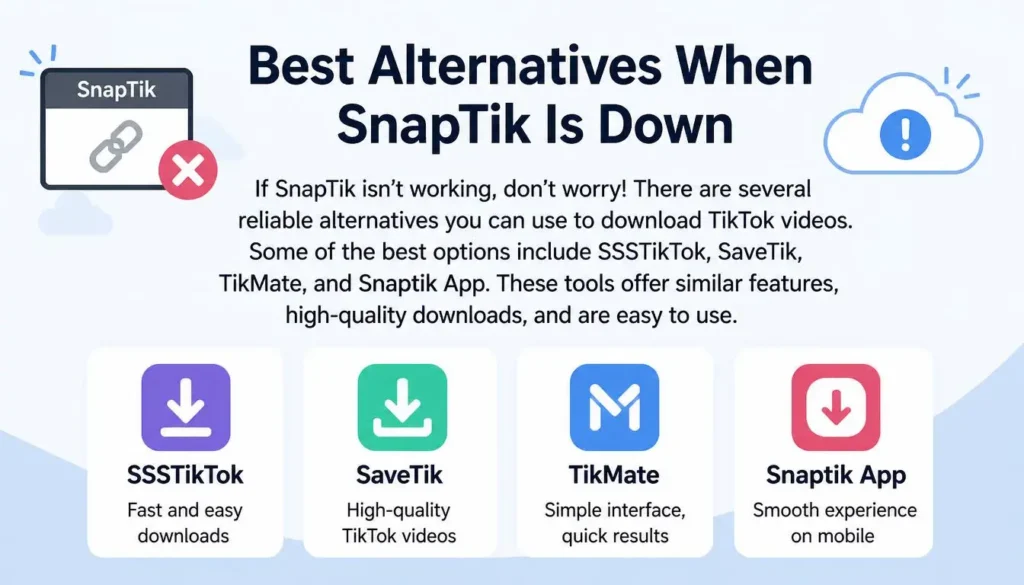
- SSSTik: A fast web downloader that offers clean, watermark-free TikTok video saves.
- SaveTik: A light, user-friendly tool designed for quick mobile video downloads.
- TikMate: A stable web downloader that works seamlessly on both desktop and mobile browsers.
Frequently Asked Questions (FAQs)
Conclusion
A “Download Failed” error on SnapTik can interrupt your content collection, but it is easy to resolve. You can fix most issues by checking video links, clearing browser cache files, disabling ad blockers, or turning off active VPNs. Always ensure the target TikTok account is public before downloading. If SnapTik is undergoing server maintenance, rely on alternative web tools to save your favorite clips smoothly.